


Public Folder: share your data with the whole community
The Public Folder is Aqua Map's most powerful way to share your data with the entire community at once. Drop something into the "public" folder inside your GEC Account, and every Live Sharing user who syncs with you gets automatic, ongoing access to it, no re-sharing needed every time you make an update.
Uploading to your Public Folder
You can upload content to your Public Folder two ways: from a browser using the Chart Viewer on our website, or directly from the app using the "Public Folder" option in the Share menu.
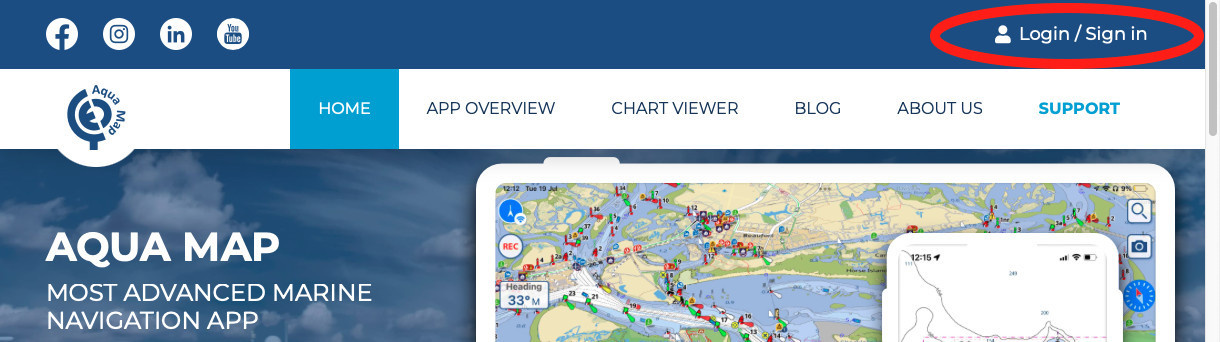
To upload from a computer, log in to your GEC Account at www.aquamap.app, then select the "Chart Viewer" tab to open your account area.
In the file manager on the left, you'll see a folder called "public," created automatically by the system and one that can't be renamed or deleted.
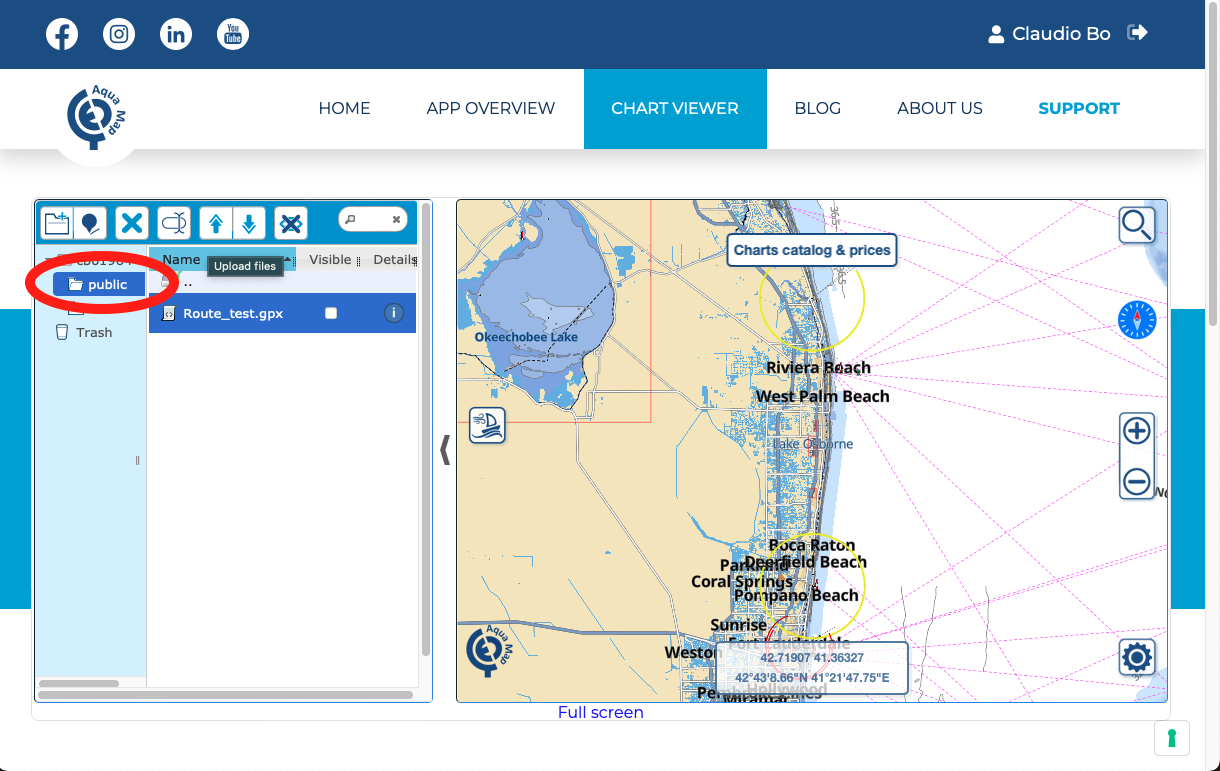
Anything you place here becomes visible to the whole Aqua Map community using Live Sharing, while everything else in your GEC Account stays completely private. Want to stop sharing something? Just remove it from the folder whenever you like.
Only GPX, KMZ, and KML files can be uploaded, whether to your GEC Account generally or specifically to the Public Folder. To upload a file, use the upload button in the top menu bar, or simply drag and drop it straight into the folder. From there, you can delete, move, and rename files just like anywhere else in your account.
Keeping your public files updated
Here's the useful part: anyone who's synced with your Public Folder stays automatically up to date, as long as you don't change the file's name. To push an update, create the new version of the file elsewhere, give it the exact same name as the original, and upload it to replace the existing one in the folder.
One detail worth being careful with: file names are case-sensitive, so double-check capitalization matches exactly before you upload.
Accessing someone else's Public Folder
Want to see what another user has shared? Open their User Details page from the Live Sharing page, and tap the Public Folder icon.
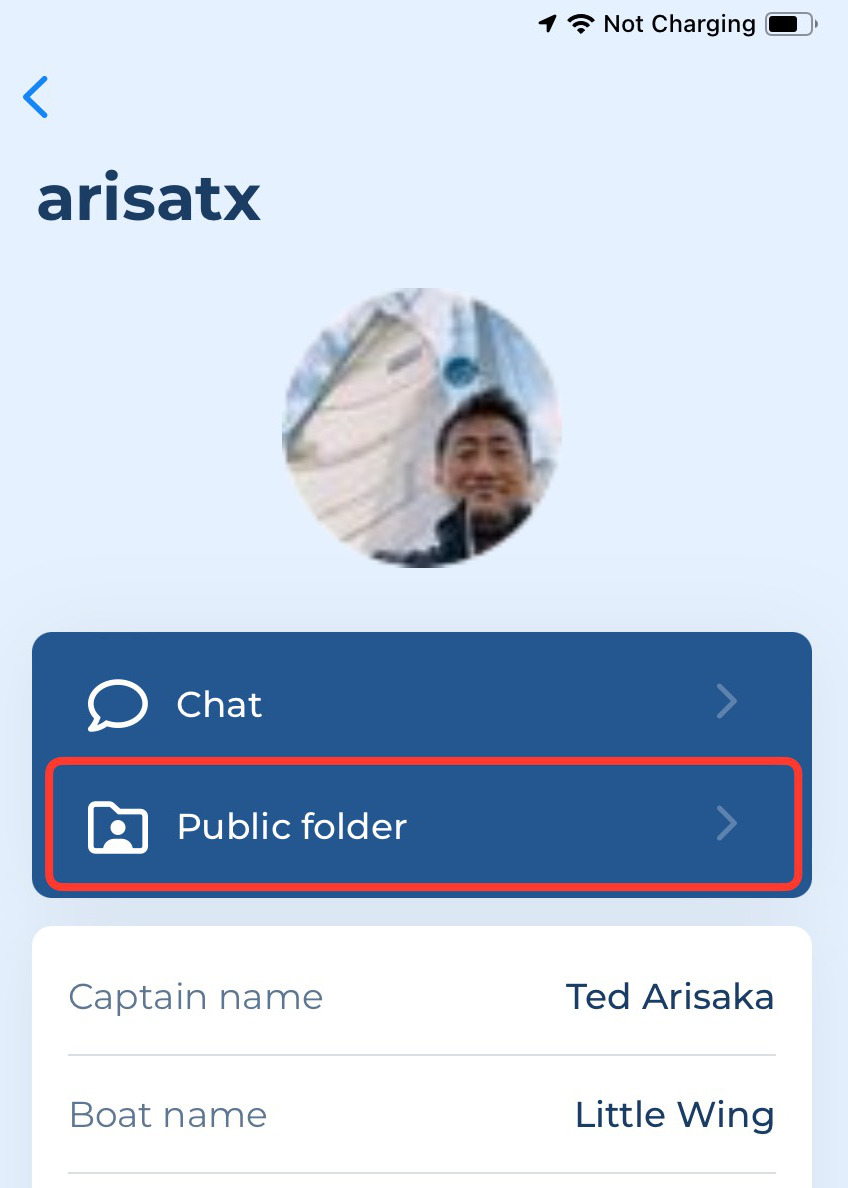
From there, you have two options:
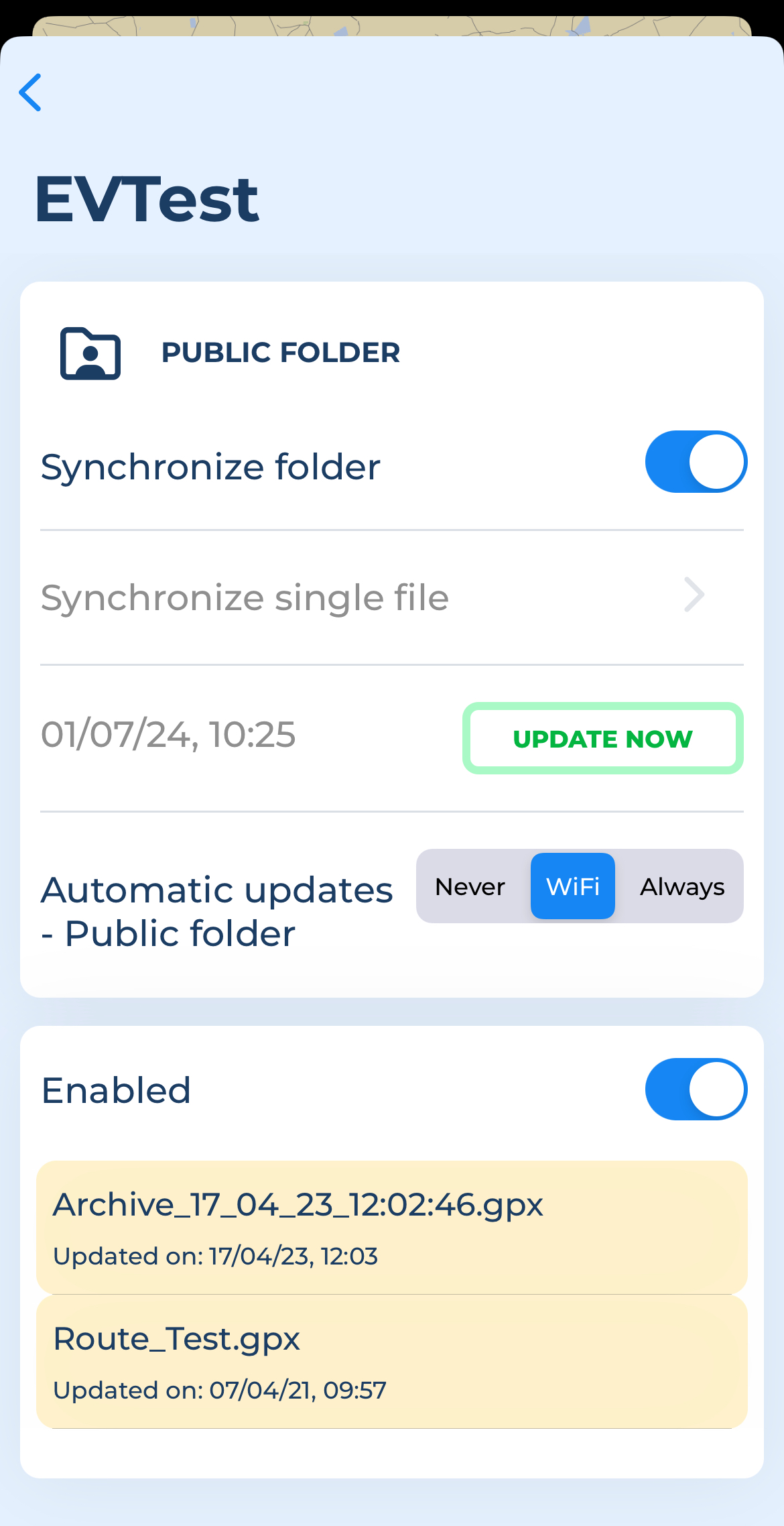
- Synchronize folder, importing that user's entire Public Folder into your app and keeping it synced going forward.
- Synchronize single file, letting you pick and choose just the files you actually want, rather than importing everything.

Either way, imported files stay synced according to your Automatic Download settings ("Never," "WiFi," or "Always," see the Automatic Download page for details), or you can force an immediate update anytime with the "Update now" button. At the bottom of the page, you'll find a list of every file you've imported from that user, each with an "Enabled" switch so you can quickly turn individual files on or off, disabled files won't appear on the map or in Search.
Using synced data in the app
Once enabled, synced items show up alongside your own data, marked with a light yellow background so you can tell at a glance where they came from.

You can use them just like your own, navigate with them, hide them, search for them, with one key difference: you can't modify them, aside from changing their display color, and even that resets automatically the next time the file updates.
Open the details page for any synced item, and you'll see a dedicated section at the top showing which file it came from, the Live Sharing username of whoever shared it, and when it was last updated in your app.

