


Live Sharing: connect with the Aqua Map community
Live Sharing connects you with the wider Aqua Map community, every user logged into a GEC Account who's opted in to share their info. Turn it on, accept the Privacy Policy, and you'll share your boat and navigation details with the community while seeing every active Live Sharing user on your own map, along with their My Boat details and live navigation data: speed, course, and, when available, depth and wind.
While connected, you can also chat directly with other users and swap routes, tracks, and markers right through the conversation.
Getting started with Live Sharing
You'll find the Live Sharing page from the main Settings menu, where you can manage every setting, your own shared data, and the full list of connected community members.
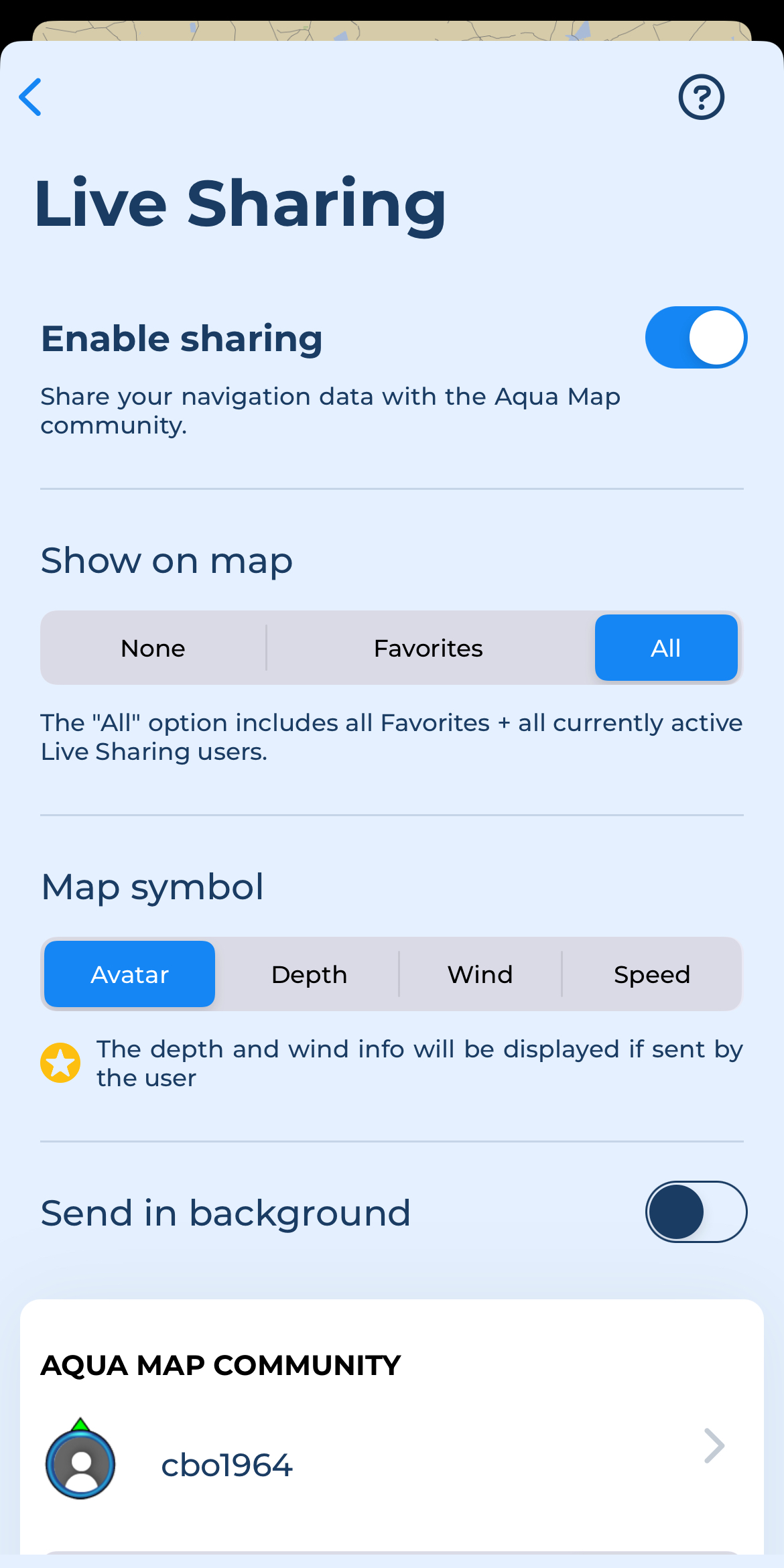
A single switch at the top turns the whole feature on or off.

Enabling it requires explicitly accepting the dedicated Privacy Policy first. On iOS, you'll also be prompted to enable push notifications, worth accepting if you want to actually be notified when a new chat message comes in.
Choosing what you see on the map
Two settings control how other users appear on your chart.
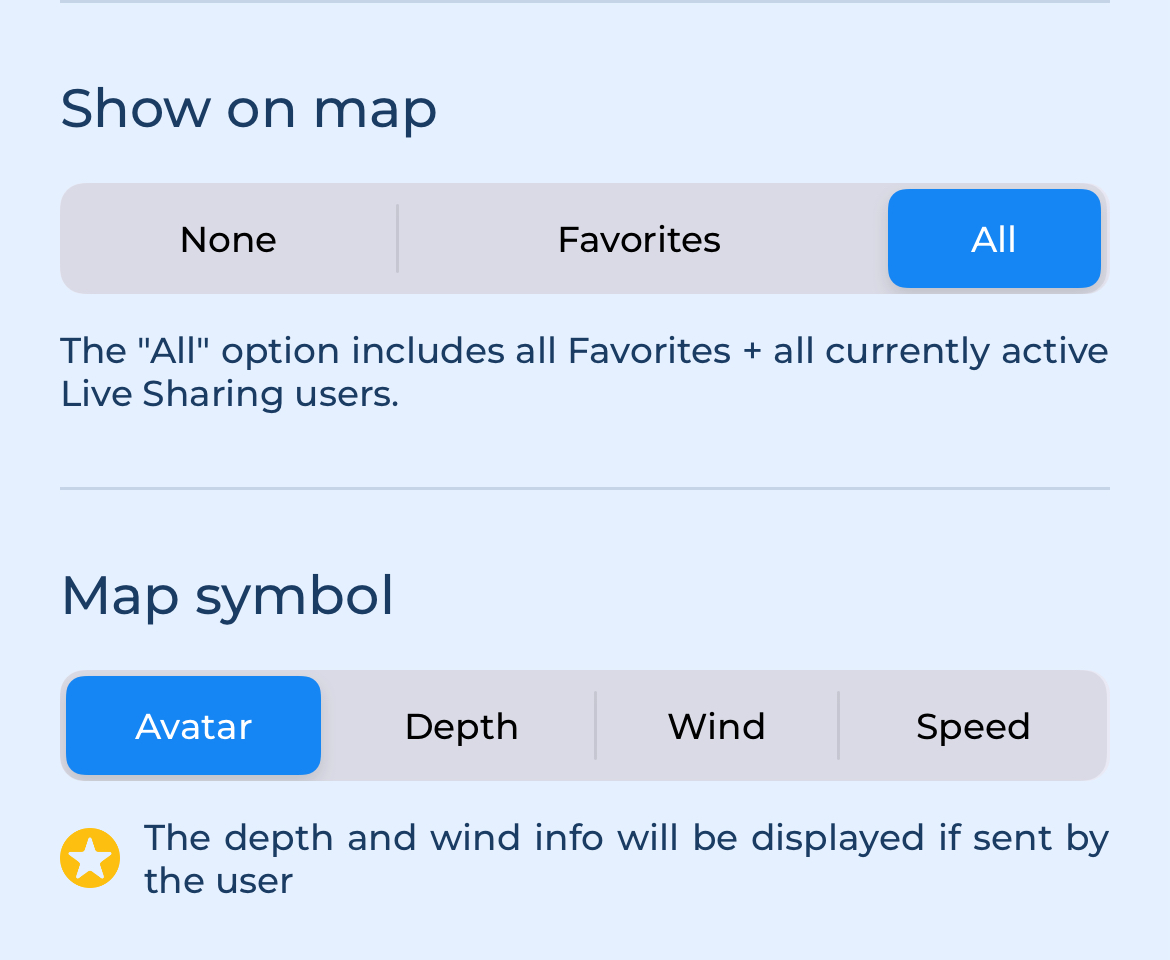
- Show on map controls who you see: "None", "Favorites" only, or "All", which shows your favorites plus every currently active user (meaning anyone who's sent a position update in the last 24 hours).
- Map symbol controls what each user's icon displays: their avatar, or a live data value instead, "Depth" shows their current depth reading, "Wind" their true wind direction and speed, and "Speed" their current speed. Depth and wind data only show up if that user has an active Wi-Fi connection feeding NMEA or Signal-K data for those readings. These three data options also require you to have an active Advanced Tools subscription, without one, only the Avatar option is available.
Sharing your data in the background
One more setting worth knowing about: enabling background sharing keeps sending your data to the Live Sharing server even after you close the app. It doesn't change what you receive, you'll only get updates while the app is actually open, but it does mean other boaters can still see your live position even when you're not actively using Aqua Map, with only a minimal impact on your cellular data usage.

The Aqua Map community list
The bottom half of the Live Sharing page shows everything happening in the community around you. The very first row shows exactly what you're currently sharing, essentially, what other users can see about you.

Below that, four tabs let you filter the list:
- Favorites, everyone you've starred, sorted by distance from your GPS position.
- Active, every currently active Live Sharing user, also sorted by distance, with an additional text filter available in this view;
- Chats, every conversation you've had, most recent first. A red circle on this tab means you have unread messages, with the number showing how many separate chats have something unread;
- Search, lets you search all users, active or not, by name or by boating lifestyle, or both together. Searching by name alone requires at least 3 characters. Results here are sorted alphabetically rather than by distance.
Reading a User row
Each row in the Favorites, Active, or Search tabs follows the same layout:

- Avatar, the user's chosen image (or a default one), surrounded by a colored border: yellow for an active favorite, blue for an active non-favorite, and gray for someone currently inactive. A small green arrow shows their direction of movement;
- Favorite star
 , tap to toggle a user's favorite status. From the Favorites tab specifically, tapping it removes them from the list
  ;
; - User info, tap this section to close the list and center the map on that user;
- Boating lifestyles, icons pulled from the user's My Boat settings;
- Info button
, opens that user's full details page.
Rows on the Chats tab look a little different: instead of user info and lifestyles, you'll see a preview of the first unread message (or the most recent one, if everything's read). Tap the row to jump straight into that conversation.

The user details page
Open a user's details page either by tapping their icon on the map and selecting the info button from the pop-up, or by tapping the info button
next to their name in the community list.

This page shows their GEC Account username, avatar, personal and boat info (including their boating lifestyles from My Boat), and their most recent navigation data along with distance from your current position. As with the map symbol settings above, depth and wind readings only appear if that user has an active Wi-Fi connection sending that data.

From here, you can also open a chat  with them, open their Public Folder
  , mark
 or unmark
 them as a favorite, center the map on their position
, or highlight them
 . Highlighting is worth knowing about: it flashes their icon red on the map and keeps the arrow and distance in your Live Sharing info box always pointing to them, useful if there's one specific person you want to keep track of. You can only highlight one user at a time.
The user Chat page
You can reach a chat in a few different ways: tap a user's icon on the map and select the chat button from the pop-up, open it from the Chats tab, or tap the chat button from that user's details page.
Messages are listed chronologically, most recent at the bottom, with your messages shown in pink and theirs in white.

Type your message in the text field at the bottom and hit send  . You can also attach a route, track, or marker to any message using the link button
  , and if you receive one, an "Import" button lets you bring it straight into the app.
Live Sharing on the map
Once Live Sharing is active, other users appear on your chart based on your "Show on map" setting, with icon style reflecting their status:
- Active favorite
 , a user you've starred who's sent a position in the last 24 hours.
 - Inactive favorite
 , a favorite who hasn't sent a position recently. Worth noting: only favorites still show when inactive, non-favorite inactive users don't appear on the map at all.
 - Highlighted user
 , flashing on screen, and limited to one at a time, set from the user's details page.
 - Active user
 , anyone active who isn't one of your favorites.
Each icon shows the user's avatar, or the data value you selected in Map symbol settings, at its center. Zoom in far enough, and their boat name appears below the icon (or their captain name, or their GEC Account username, whichever is available first).
Tap any icon, and a pop-up lets you start a chat  or open that user's details page
 , tapping the center of the pop-up also shows a list of every nearby object, not just that user.

The Live Sharing info box
Just above the GPS info box, you'll find a dedicated Live Sharing box showing, from left to right: the Live Sharing icon (flashing while actively receiving data), the total number of active users worldwide (if "All" is selected), your favorites icon with the count of currently active favorites, and an arrow with distance pointing to whichever user matters most right now, a highlighted user (red arrow) takes priority, followed by the nearest active favorite within 10 nautical miles (yellow arrow), or, lacking either, the nearest active user overall (white arrow). A red circle here, just like on the Chats tab, flags unread messages and opens the Chats list when tapped.

Tap anywhere on this box at any time to jump straight to the Live Sharing settings page.
Want to see it in action?
For a full walkthrough of Live Sharing, check out our video tutorial.
