



Search: finding anything on your chart, fast
Whether you're after your nearest marker, a specific marina, or a route you saved months ago, Search is the fastest way to find it. Tap the magnifying glass icon  in the upper-right corner of the screen to open it, and you'll be searching across two distinct sets of data.
- User data, everything you've personally created or imported, markers, tracks, and routes.
- Places and POIs, a curated set of geographic places and points of interest.
Searching your User data
Open Search, and you'll land on this tab first by default, with a search box up top and two tab switches to move between User Data and Places and POIs.

- Search by name, typing in the box filters your list to anything containing that text (not just items that start with it) in either the name or description.
- Switch data sets between User Data and Places and POIs at any time. One detail worth knowing: your search text stays in the box when you switch, it doesn't reset automatically.
- Filter by type, choosing "All" or narrowing down to just Markers, Tracks, or Routes.
- Edit mode
 , tap the edit icon to select and manage multiple objects at once (more on this below).
 - Sort the list
 , by Distance (from the center of your current map view), Name (alphabetically), or Date (last modified)
  .
. - Download from your GEC Account, which opens your GEC archive if you're already logged in, or the login page if you're not. See the GEC Account page for the full picture.
For each item in the list, you can tap its name to center and zoom the map on it, tap the info button to open its full details page, use the toggle to hide or show it on the map, or, on iOS only, swipe right to left to delete it directly (on Android, deleting requires opening the item's details page first).
Edit mode
Tap the edit button , and you can act on several objects at once instead of one at a time.

Tap the radio button on each item you want to include, then use the bottom toolbar to:
- select or unselect all items currently shown in the list;
- show or hide every selected item on the map at once;
- share
every selected item together in a single file. This is genuinely handy for archiving a batch of items to your GEC Account in one go, though it's worth knowing that once bundled this way, the file is stored as a single combined item, so you won't be able to re-import just part of it later;
- delete
every selected item at once.
Tap the edit button  again to exit Edit Mode.
Searching places and POIs
Switch to this tab, and you're searching a broader set of geographic categories, community points of interest, place names, and more.

- Search by name works the same way as on the User Data tab.
- Switch data sets back to User Data whenever you like, your search text carries over here too, even after closing and reopening the Search page.
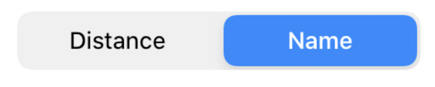
- Sort the list, by Distance or Name
 .
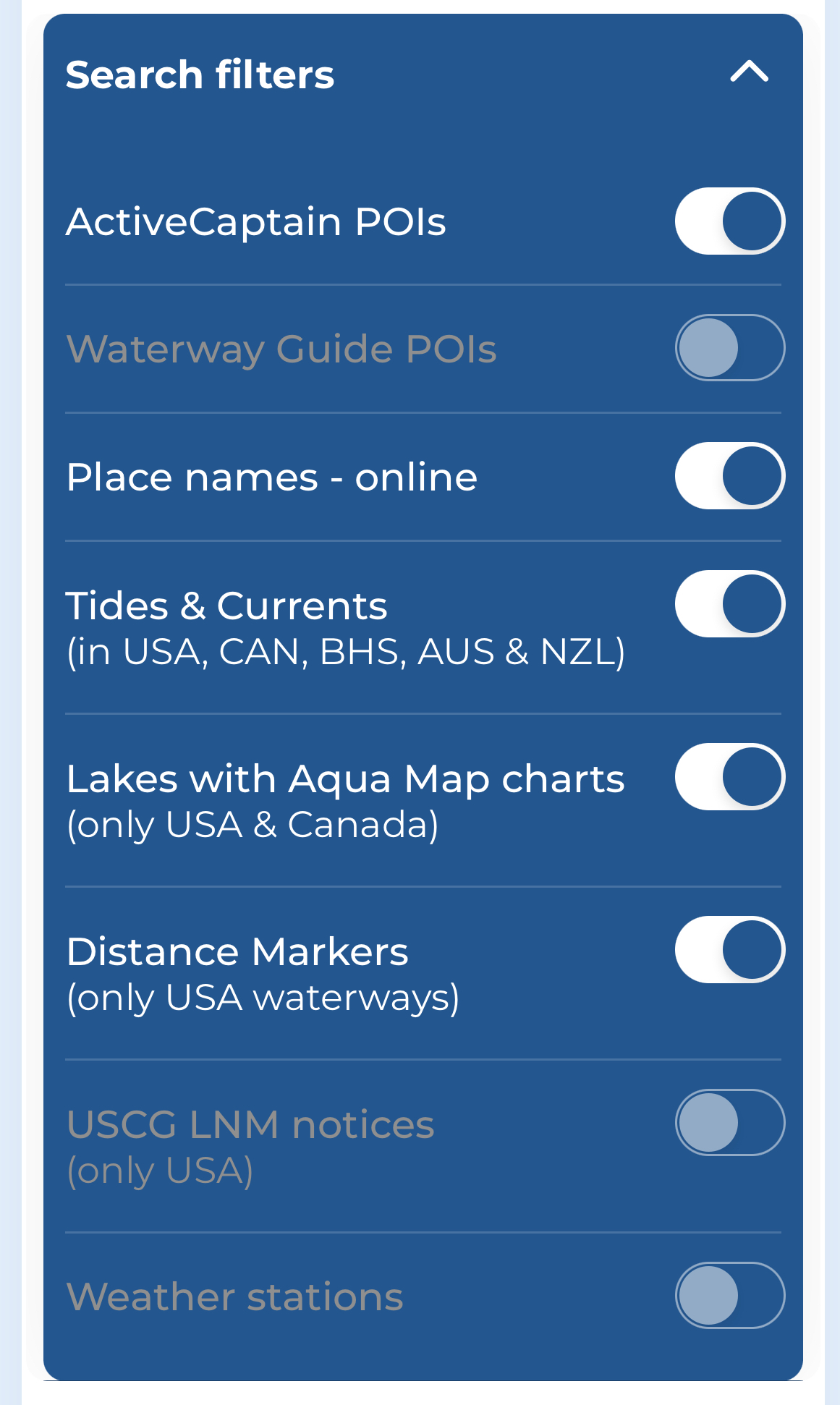
. - Search filters, tap the filter button
 to open a full list of categories you can enable or disable for your search. If an option appears grayed out, it usually means that data type either isn't downloaded yet or isn't enabled in your settings.
For each result, tap it to center the map on that location, or tap the info button , when available, to open its full details page. No info button means there's nothing further to show for that item.
Want to see it in action?
For a full walkthrough of Search, check out our video tutorial.
