


Tides & Currents: predictions from all over the world
Aqua Map gives you access to worldwide forecasts from over 14.000 tide and tidal current stations. Beyond the standard graph view, you can also see tide and current data directly overlaid on your chart, right where you're navigating.
To turn the Tides & Currents overlay on or off, head to the main Settings menu.
Reading the icons on the map
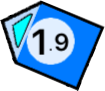
Once the feature is active, you'll see two types of icons on your chart: one for a real-time tide prediction  , and one for a real-time tidal current prediction
  .
.
Tide icons
Each tide icon shows a number, the current tide value in feet or meters, alongside a simplified graph indicating the tide phase. If the graph sits on the right side of the icon, the tide is rising  , if it's on the left, the tide is falling
  .
.
The graph itself is split into dark blue and light blue sections showing what percentage of the total tide range you're currently at, a fully dark blue graph means high tide, a fully light blue one means low tide. One detail worth knowing: if the number appears in red, that's a negative tide, meaning it's below the Mean Low Sea Level.
Tidal current icons
Each tidal current icon  shows a number, current speed in knots or kilometers per hour, along with an arrow pointing in the direction the current is flowing. Inside that arrow, a small cyan symbol tells you whether the current is strengthening
  (pointing the same direction as the arrow) or weakening
 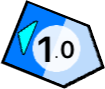 (pointing the opposite way).
Like the tide icons, the arrow is split into dark blue and light blue sections showing how close the current is to its peak strength, fully dark blue means it's at its strongest right now, fully light blue means it's at its weakest.
You might also notice these icons looking somewhat transparent on the map 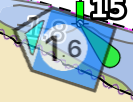 . That's intentional, it reflects how far below the surface that particular current prediction sits, the more transparent the icon, the deeper the reading.
Running a time simulation
Tap any tide or current icon, and a pop-up window appears.

Tap the play icon  inside it to start a simulation across every tide and current icon currently on screen, letting you watch conditions shift over the course of the day using the slider.
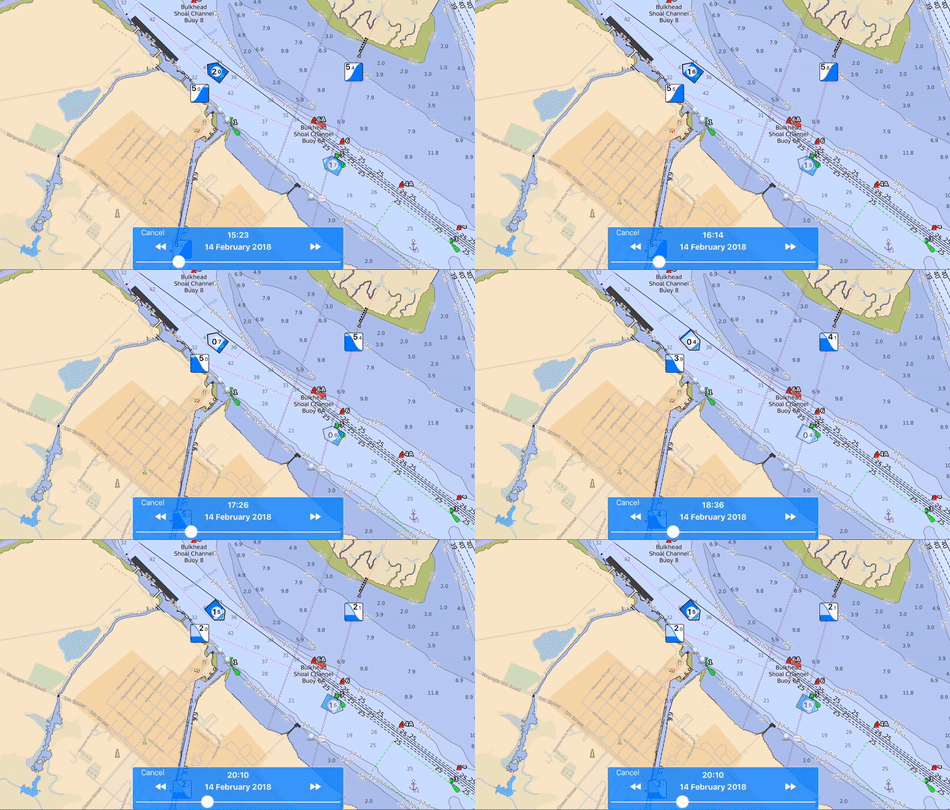
To jump between days, tap the arrows in the blue box, or tap the date/time label directly to pick a specific date or time.
The station detail page
From that same pop-up, tap the info button to open the full detail page for that station, broken into five sections, namely:
- Station name, shown at the top;
- Date selection, move backward or forward 24 hours using the arrows, or tap the date label to jump to a specific one. Worth checking here: the "Your Time" and "Station Time" switch, which lets you choose which time zone the predictions are shown in;
- Graph, the overall tide or current behavior, with a slider to check values at specific times and a green vertical line marking the current time;
- Main station events, listing each major event with its time, value, and description;
- Bottom menu, letting you switch between a graphical or a plain text view of the prediction.

